Official Guide · All Platforms

Shadowrocket GuideImport Subscriptions and Route by Rules

Install the client for your platform, then import an existing configuration and set up rule routing. iPhone / iPad: $2.99 one-time through the App Store; Mac, Windows, Android, and Linux versions are free.

Current version 2.2.92 · Mac, Windows, Android, and Linux versions are free

Global Routing Config On Demand

Get Shadowrocket for every platform

Check your device and processor, then follow the matching download instructions.
iPhone / iPad: $2.99 one-time through the App Store; Mac, Windows, Android, and Linux versions are free.

iPhone / iPad

Get Shadowrocket from the App Store. Check the App Store listing for system requirements. Before downloading, verify the app icon, developer, and app ID; both devices can use the same purchase account to restore the app. After opening it for the first time, import your existing subscription or server details. Purchasing the client does not automatically provide a server connection.

App Store $2.99 one-time · Other platforms free

Mac

Two DMG builds are available: Apple Silicon and Intel. Check About This Mac for your chip or processor before choosing. Get the installer from this site's download page. If macOS blocks the first launch, verify the file source, then follow the download page's “Privacy & Security → Open Anyway” steps. There is no need to repeatedly install builds for different architectures.

Free · Apple Silicon / Intel

Windows

The download page provides a 64-bit installer. Save any configuration you are editing before installation, then import your existing details afterward. If SmartScreen blocks the installer, confirm it came from this site and choose “More info → Run anyway.” If the connection fails, check the system network and current server first, then review the rules. Avoid changing several settings at once.

Free

Android

An arm64 installer is available from this site's download page. When Android requests installation permission, enable “Allow installing unknown apps” only for the browser or file manager you are using, and turn it off afterward if desired. Confirm the VPN request when prompted on first connection. Granting permission does not confirm that a server is available; you still need to test your existing configuration.

Free

Linux

Choose deb, rpm, or AppImage according to your distribution; do not choose based only on file size. For Debian-based distributions, start with the deb instructions; for distributions using rpm package management, see the rpm instructions. AppImage files need execute permission before launch. The download page lists commands, file paths, and first-launch steps. Confirm the current filename before following them.

Free · deb / rpm / AppImage

Rule routing and configuration management

Server settings determine where a connection goes; Global Routing determines how requests are handled.
Understand these two layers before changing rules, On Demand, or diagnostic settings.

Config / Rule

Rules are checked in order

Rule routing determines which requests use PROXY, which use DIRECT, and which are blocked by REJECT. With Config selected in Global Routing, the client checks rules in the order shown in the current configuration and applies the matching policy. Rules are not all combined into one calculation. Place specific domain and local-network rules first, and put FINAL at the end as a fallback. Keep a copy of the original configuration before editing, then test against a known destination to avoid changing the route for unrelated requests.

DOMAIN-SUFFIX,example.com,PROXY
IP-CIDR,192.168.0.0/16,DIRECT
FINAL,PROXY

This example illustrates rule syntax only. example.com is not a server address; whether PROXY works depends on the currently selected server.

Settings

On Demand connections

On Demand can trigger a connection when specified conditions are met. Set it up after confirming that manual connections work. First review the current conditions in Settings and distinguish networks where you want to stay connected from those that need exceptions. Change one condition at a time when testing. If the client reconnects after you turn it off, check On Demand before deleting a server. You can temporarily disable the relevant conditions while troubleshooting basic connectivity, return to manual operation, and re-enable them one by one after testing.

Subscribe / Add Server

Import existing subscriptions and servers

Use Subscribe to manage a server list that can be updated, and Add Server to enter a single configuration. Do not identify them by link length alone. Before importing, check the type in your existing provider details and make sure the copied content has no extra spaces or line breaks. Updating a subscription may change server names and the list, so check the selected server again afterward. For a single entry, review fields such as Type, Host, and Port individually. Do not switch protocol types without understanding what the fields mean.

Check parameters for each protocol

Shadowsocks, VMess, VLESS, Trojan, Hysteria2, and WireGuard require different fields. A protocol name identifies a configuration type; it does not indicate connection quality or replace complete parameters. Prefer a complete share link or QR code from your existing materials. When entering details manually, check the address, port, authentication information, and transport options. If a connection fails, compare the settings with the original details instead of entering one protocol's fields under another type. Compatibility and available settings depend on the client's current interface.

ShadowsocksVMessVLESSTrojanHysteria2WireGuard

Config, Data, and diagnostics

Config manages routing rules, Data displays traffic, and Connectivity Test helps assess server reachability. First confirm which Config is in use, then check how the target request relates to the selected server. A reading in Data does not mean every app uses the same route; measurement methods and reset timing also affect comparisons. If you use iCloud sync, check the sync scope and completion status, and save a copy before making changes. Syncing a configuration and establishing a connection on another device are separate steps.

Troubleshoot by symptom →

Three Global Routing modes

Config, Proxy, and Direct correspond to the options shown in the interface. Switching modes sets the request path; it does not fix incorrect server parameters.

Route traffic using the current Config

Config is useful when requests need different paths based on their domain or address. Check that the required configuration file is selected in Config, then return to Home and review Global Routing. If a destination does not use PROXY as expected, check whether an earlier rule matched and what policy FINAL points to. Do not rely only on the connection switch being on to confirm that routing is correct. Use a consistent test destination and compare the rule order with request records to distinguish a server issue from a policy selection issue.

First Shadowrocket connection

Prepare an existing subscription or server details first. Adjust automation only after a successful manual connection.

  1. Add Server / Subscribe: import existing details

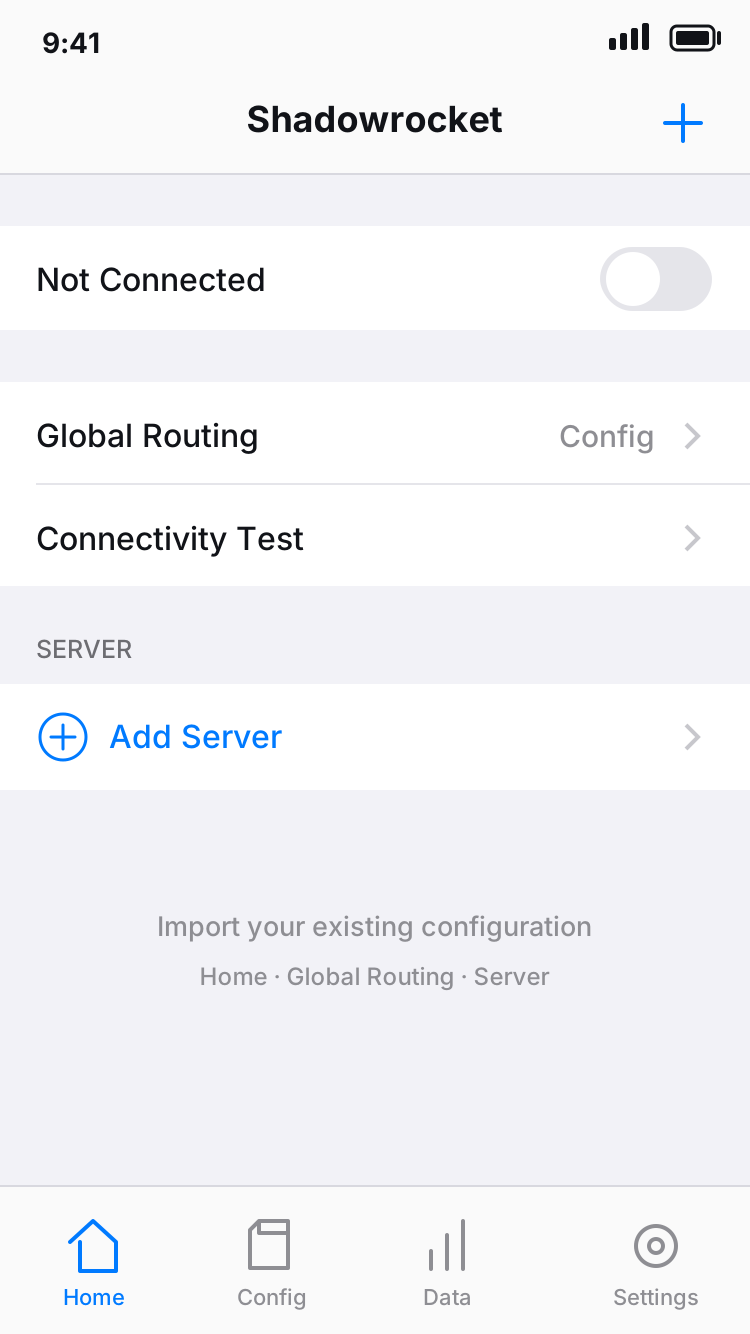
    First identify whether you have a single share link, a QR code, or an updateable subscription address. Add a single entry with Add Server or Scan QR Code, and import a subscription through its corresponding option. Return to Home afterward and check that an entry appears in the SERVER group, with a name and protocol that match the original details. If the list is empty, do not repeatedly add the same entry. Check whether the link is complete and still valid, then try updating it.

    Server entries and routing configurations are managed separately. A successful import only means the client recognized the details; it does not confirm that the server is reachable or that routing rules are active. For initial testing, keep one clearly identifiable entry so you can check it later.

  2. Global Routing: check the mode and configuration

    Choose Config and check the current configuration for rule routing. Use Proxy to compare the proxy path temporarily, or Direct to check the basic direct route. These three modes are not speed settings. Before choosing a mode for everyday use, understand where requests go in each one. If an existing configuration contains custom rules, review the individual rules first, then check the FINAL fallback policy.

    If you are not sure what a configuration does, save a copy before changing it. Keep the server unchanged while troubleshooting and change one setting at a time. Once you have a consistent result, move to the next step so you can identify what caused the change.

  3. Home: verify access after connecting

    Select a server, turn on the connection switch, and confirm the VPN configuration request when prompted by the system. Run Connectivity Test first, then check access to a specific destination. A test response is a diagnostic clue, not a substitute for a complete web or app request. If something goes wrong, record separately whether the switch stays connected, the server test result, and whether the specific destination is accessible. Do not combine different symptoms into a single conclusion.

    If only some destinations fail, check the rules and DNS first. If everything fails, check the system network and server details. For more guidance, follow the symptom-specific steps on the troubleshooting page. Avoid changing the mode, DNS, and protocol parameters all at once.

App verification, purchases, and service scope

Shadowrocket is closed-source commercial software. This is the official Shadowrocket website and manual; access options and usage instructions are listed separately here.

Developer: Shadow Launch Technology Limited App ID: 932747118 Two ways to get it: iPhone / iPad $2.99 one-time · Other platforms free

Verify three details in the App Store

Open the specified product page and check the app name Shadowrocket, the official icon, and the developer Shadow Launch Technology Limited. Confirm the app ID is 932747118. Similar names in search results are not enough to verify an app; check the icon, name, and developer together. If another app with the same name appears free, do not mistake it for the iPhone / iPad product described here.

iPhone / iPad costs $2.99 as a one-time App Store purchase; the exact display depends on your storefront. Mac, Windows, Android, and Linux versions are free. For computers and Android, choose the matching platform on this site's download page; installers are provided through this site's /dl/shadowrocket/ path. Do not substitute a similarly named store listing for checking the platform.

Store availability and system requirements

Whether Shadowrocket appears in App Store search on iPhone / iPad depends on the storefront region associated with your Apple ID. The app is not listed in the mainland China storefront. If you cannot find it, check your account region and the product page rather than assuming the app has been renamed based on search results. If you need to change your region, follow the official Apple ID process and check the related requirements for balance, subscriptions, and payment methods first.

Refer to the App Store product page for system requirements. Before installing, check your device's current system and compatibility details on the product page. Do not assume that another person's device experience applies to yours. See the relevant sections of the download page for more on the store, account regions, and installation.

Restore purchases and set up a replacement device

The one-time iPhone / iPad purchase can be used on both devices with the same purchasing account. When replacing a device or reinstalling, first sign in with the original purchasing account, then find Shadowrocket in your purchased items. If the store still shows a purchase button, check the account and purchase history before paying again. After downloading the app, you still need to confirm that your existing configuration has been restored.

Purchase history, configuration backups, and an active server connection are three separate things. Restoring the app does not automatically restore all server details. If you use iCloud sync, check that the relevant content has finished syncing. Backups may contain server authentication information, so remove sensitive details before sharing screenshots or troubleshooting records.

App purchase ≠ network service

The client reads configurations, establishes connections, and applies rules. Server availability, subscription contents, and any usage limits depend on the services you already have. This site only provides instructions for using the client. Prepare your own subscription or server details before using this guide; purchasing the client does not provide a network route.

An expired subscription or server timeout is not the same as whether the client has been purchased. During troubleshooting, first check whether your own details are still valid, then review the import and connection settings. When describing a problem to someone else, share only the symptoms and necessary parameters. Do not expose a complete subscription URL, password, or authentication fields.

Other platform downloads and updates

Mac has separate Apple Silicon and Intel versions, and Windows, Android, and Linux each have their own installers. Check the processor and package format before choosing, then follow the installation steps. If the system blocks an installer, follow the instructions for that platform on the download page. Do not run commands or bypass prompts before confirming the source. Changing platforms does not change the need to verify server parameters.

Update the iPhone / iPad app through the App Store. For computers and Android, return to this site's download page for the latest installer. Keep your current configuration before updating; afterward, check the selected server, Global Routing, and any required permissions. If an issue occurs after an update, first compare the settings, then troubleshoot by symptom instead of clearing all your data.

What to include in troubleshooting notes

A useful troubleshooting record includes the device platform, network in use, Global Routing mode, connection switch status, and the specific destination causing the issue. If the same server behaves differently on different networks, keep that comparison. If only Config fails, check the rules first. Clear records make it easier to determine whether the next change should involve the network, parameters, or configuration.

Change one setting at a time and note the results before and after. Connectivity Test, Data readings, and actual access describe different aspects; do not use one as a substitute for all the others. When testing is complete, restore any temporarily disabled On Demand conditions and remove duplicate entries you no longer need to keep the configuration traceable.
Download Shadowrocket for all platforms